
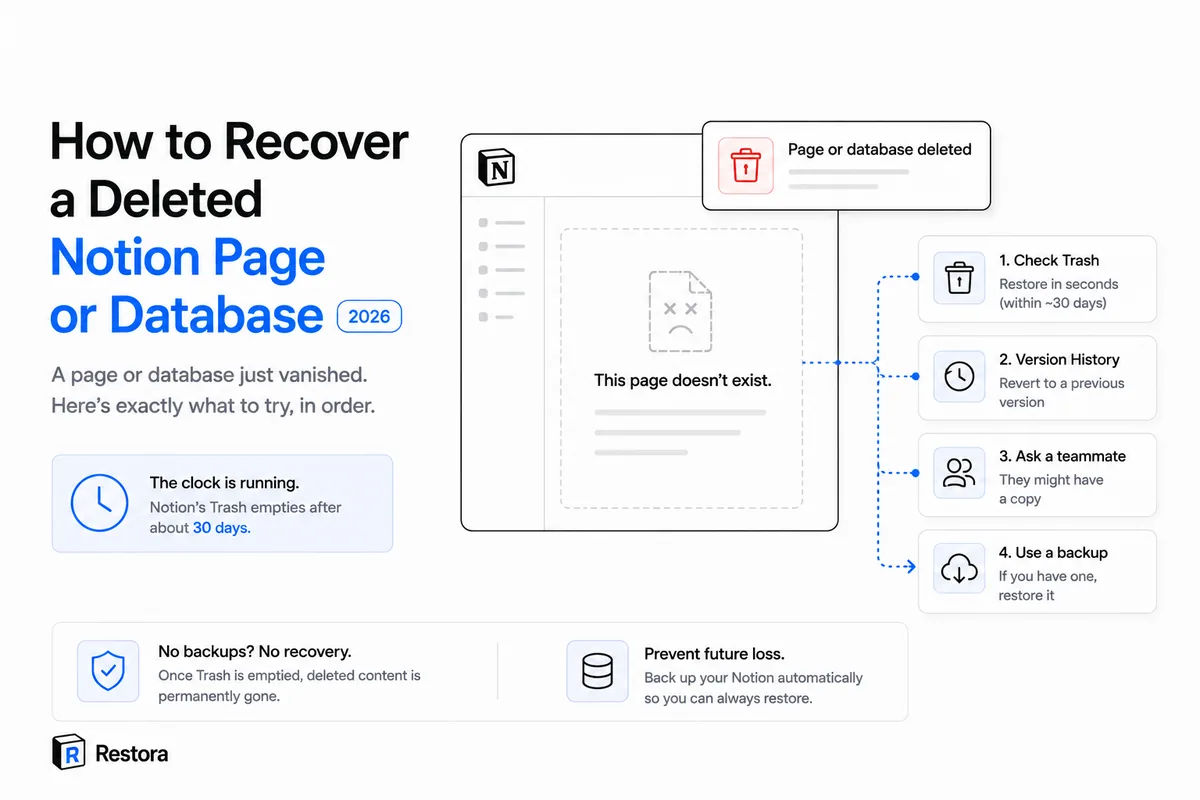
You opened Notion and the page was gone. The database you spent a month building, the client doc, last week's meeting notes — not where you left it. Your stomach drops. Before you do anything else, read this: what you do in the next few minutes decides whether you get it back.
Here's the short version, because you're in a hurry. If you deleted it, it's almost certainly sitting in your Trash and you can restore it in about ten seconds, as long as it's been less than ~30 days. If someone overwrote it with an edit, Trash won't have it, but the page's version history might. If your Trash already emptied, the honest answer gets harder. Let's go in order.
First: act now — the clock is running
Notion's Trash is not permanent storage. It holds deleted pages for 30 days by default, then deletes them for good. Once that happens, there's no version history to fall back on, and the only route left inside Notion is support, which Notion describes as restoring a snapshot from the past 30 days. So the single most important thing is speed. Don't spend an hour reorganizing your workspace or "looking around" first. Check Trash now, restore now, sort out the details after the page is safe.
1. Check the Trash and restore it
- Look at the bottom of your left sidebar for Trash. Click it.
- Search by the page title. Trash only holds deleted pages, so if it's here, it was deleted — by you or someone else.
- Hover the item and click Restore. It returns to its original location with its content and sub-pages intact.
A couple of things trip people up. Trash is scoped: a page you deleted inside a teamspace shows in that teamspace's trash, not your private one. If you can't find it, check the workspace switcher and look in every space you belong to. And the ~30-day window is a rolling cliff. A page deleted 29 days ago is recoverable today and gone tomorrow. If you see it, restore it now and read the rest of this later.
Deleted a database or its rows?
A Notion database, and every row inside it, is a page under the hood. Delete the whole database and it lands in Trash as one item; restore it and the rows come back with it. Delete individual rows and each goes to Trash separately, so you restore a deleted Notion database row the same way: find it, click Restore, and it drops back into place. The pain is volume. If an automation or a stray multi-select wiped 200 rows, you're restoring them one at a time — Notion has no "restore all these" button. Tedious, but recoverable, as long as you're inside the window.
2. Was it overwritten, not deleted? Use version history instead
This is the distinction that decides which tool saves you, and most people get it wrong under stress.
- Deleted means the page or row was removed. It's in Trash. Restore it there.
- Overwritten means the page still exists, but its content changed: someone pasted over your text, an automation rewrote a field, you fat-fingered a property. Nothing was deleted, so nothing is in Trash. The old content lives only in that page's version history.
To roll back an edit: open the page, click the ••• menu in the top-right, choose Version history, scrub to a timestamp before the damage, and restore it. Version history is per-page, and it reverses edits on a page you still have.
The catch is retention. How far back your history goes depends on your plan: Notion's help center lists 7 days on Free, 30 on Plus, 90 on Business and unlimited on Enterprise (checked September 2026 — Notion does change these). If the good version is older than your retention window, it's already gone from history. And note the trap: a deleted row you pull back from Trash returns whole, but an overwritten row's old values survive only in version history until retention expires — Trash never had them. We go deeper on where each tool's limits actually bite in Notion version history and trash limits.
3. Ask the workspace owner or an admin
Before you conclude it's lost, rule out the boring explanations. Pages don't always vanish; sometimes they move. A teammate dragged it into a different teamspace, changed its permissions so you can no longer see it, or it's in a space you were removed from. If you're on a team plan:
- Ask whoever owns the workspace to search Trash from their account. An admin can see deleted content across teamspaces you may not have access to.
- Check whether the page was shared to a specific group and your access changed.
- Ask directly: did anyone move or restructure this recently? The answer is often yes.
- If the whole workspace is gone rather than one page, the steps are different — see what you can still recover from a deleted workspace.
4. Trash already emptied? Ask Notion support, fast
If Trash no longer has it, there's no hidden version history to fall back on, because the page no longer exists to have one. What's left inside Notion is support. Notion's help center says it keeps backups of its database and can restore a snapshot of any page from the past 30 days — so if the page was permanently deleted recently, say someone emptied Trash or deleted it from there, message support right away from the ? button at the bottom of your sidebar, with the page title, the workspace and roughly when it disappeared. If the deletion is older than 30 days, that window has closed too. Either way, keep hunting for an independent copy in the meantime: an old export, a synced integration, a teammate who happened to duplicate the page.
This isn't a knock on Notion. Trash and version history are good tools for the job they're built for: undoing a mistake you catch quickly. They were never designed to be your backup, and treating them like one is exactly where people get hurt.
What actually beats the 30-day clock
The only thing that survives an emptied Trash and an expired version history is a copy that lives somewhere Notion doesn't control. Everything built into Notion is on a timer. An independent backup on storage you own isn't.
| Your situation | Built-in tool to try | Does it work? |
|---|---|---|
| Deleted a page, < ~30 days ago | Trash → Restore | Yes |
| Deleted database rows, < ~30 days ago | Trash → Restore each | Yes, one at a time |
| Overwritten by an edit or automation | Page version history | Only within plan retention |
| Property type changed, old cell data dropped | — | No — schema loss isn't in history |
| Permanently deleted within the last 30 days | Notion support | Possibly — Notion says it can restore a snapshot from the past 30 days |
| Deleted more than 30 days ago | — | No |
| Any of the above, with a prior backup | Restore from your backup | Yes |
That last row is the entire reason Restora exists. You connect Notion, and Restora copies your workspace to storage you own: your Google Drive, any S3-compatible bucket, or a local folder. No copy lands on our servers. Backing up is free forever; you only pay if you ever need to restore. And when you do, Restora rebuilds databases inside Notion with relations reconnected, rollups and formulas recomputed, and views restored, not a flat CSV dump. That distinction matters, because Notion's own export quietly drops relations, rollups, formulas, and views; re-importing that CSV gives you a new, disconnected table, not your database back.
If you got your page back from Trash today, good. Now spend two minutes making sure the next scare ends differently. Set up a backup while everything is still intact — npx @restora/cli backup from your terminal, or schedule it with restora schedule --daily 09:00. The CLI is free and runs locally. Or connect the app and let it run on a schedule. Either way the goal is the same: a copy that isn't on Notion's 30-day timer.