
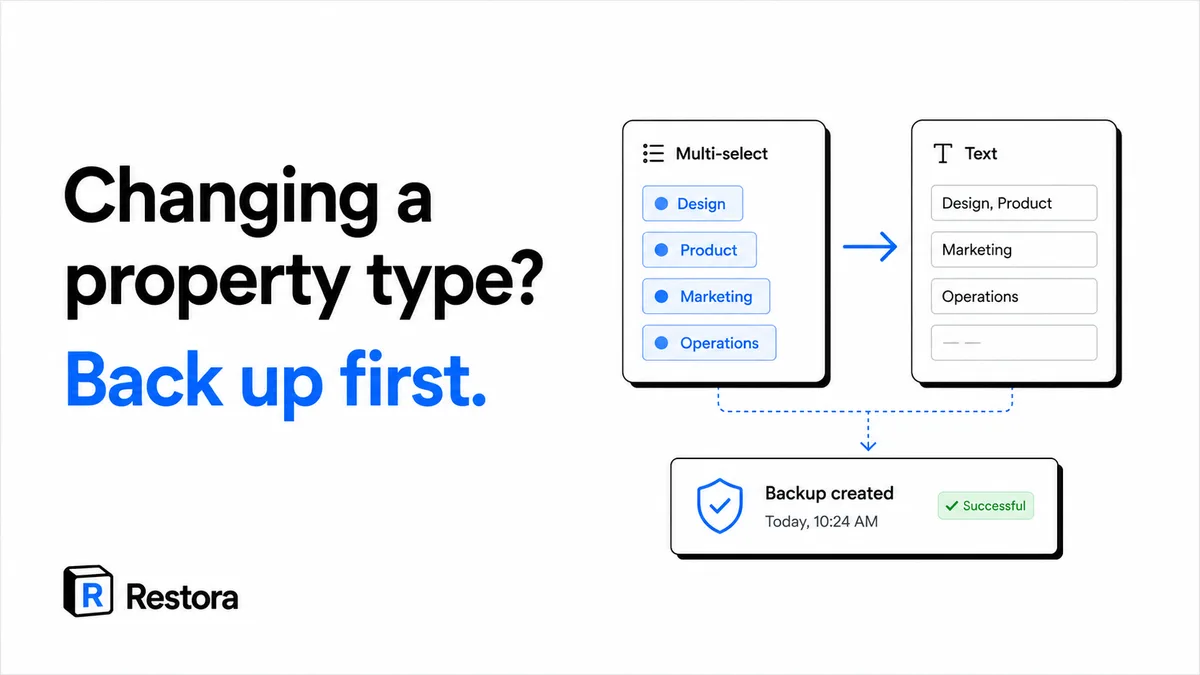
You're mid-cleanup. A database has grown messy — a text field that should really be a select, a multi-select that should be a relation, a date someone typed as free text. So you open the property menu and switch the type. Notion doesn't stop you. It just applies the change.
That single click is where notion property type change data loss happens, and almost nobody treats it that way. Some type conversions don't convert your data — they discard it. There's no confirmation checkpoint, the immediate Ctrl+Z can help only if you catch it in the same session, and the one feature people assume will save them — page version history — does not version the property schema. Once you refresh, the old values can simply be gone.
Why a property type change is hard to reverse
Notion's version history tracks changes to page content and property values over time. What it does not snapshot is the database schema — the definition of each property, its type, and (critically) how the underlying cell data is stored for that type.
When you convert a property, Notion re-interprets every cell against the new type's storage model. If the old data doesn't fit the new model, it gets dropped during the conversion rather than parked somewhere you can retrieve it. There's no confirmation dialog — Notion applies the change instantly. An in-session Ctrl+Z (or Cmd+Z) can reverse it if you catch it right away, but once you refresh or reopen the page that undo is gone, and version history never recorded the schema to begin with. So you're not rolling back a versioned edit — you're trying to recover a structure the history layer never captured.
Which conversions are lossy
Not every type change is destructive — some are lossless (Select → Multi-select generally keeps the value). But several common cleanup moves are exactly the ones that lose data. These are well-established behaviors worth knowing before you touch the menu:
- Multi-select → Text. A structured set of tagged options collapses into a single flat string, usually comma-joined. The individual options, their colors, and the option list itself stop being structured data — you can't filter or group on them anymore. And because Text → Multi-select re-splits on commas, reversing back won't cleanly reconstruct the original tags: any option that itself contained a comma fragments into pieces.
- Text → Select / Status. Notion auto-creates options from your existing distinct values, so this rarely empties a column outright. The real risk is messier: inconsistent casing, stray whitespace, or commas inside a value can fragment or mangle those values into duplicate and half-formed tags ("Done", "done ", and "done" becoming three separate options). You end up cleaning up option sprawl rather than losing everything — but it's still work you didn't plan for.
- Date → Text. You keep a string, but you lose the date semantics — the value is no longer a real date, so date filters, calendar/timeline views, reminders, and any formula doing date math against it break.
- Relation or Rollup → almost anything. Converting a Relation discards the linkage between rows; a Rollup is a computed view of a relation, so changing it drops the computation entirely. The connections that made the database relational are the first thing to go.
- Number → Text, or Formula → a static type. You can lose numeric formatting and, in the formula case, the live logic — you're left with whatever value happened to be showing, frozen and disconnected from its inputs.
If you're unsure whether a specific conversion is safe, treat it as if it isn't. The cost of a backup is seconds; the cost of a wrong guess on a 2,000-row database is your afternoon at best, and unrecoverable data at worst.
The safe way to restructure
Restructuring is normal and healthy — you just want a checkpoint before you do it. The honest sequence:
- Back up the database first, along with any databases it relates to, while every property still holds its original type and values (here's how to back up a single database). This is the whole game. A backup taken before the change preserves the multi-select options, the relation links, the real dates — the exact things a lossy conversion throws away.
- Prefer additive changes. Instead of converting a property in place, add a new property of the target type and migrate values into it deliberately. If it goes wrong, the original column is still sitting right there.
- Change one property, then verify before moving to the next. Batch restructures are where a single wrong conversion cascades into filters, rollups, and views across the whole database.
This is exactly why exporting your database to CSV or taking a structured backup before a cleanup is worth the two minutes — and why the free half of Restora exists.
See exactly what a change altered
If you back up on a schedule, you can do something Notion's own history can't: compare a known-good backup against your live workspace and see precisely what moved. Restora's Drift Auditor is a free, read-only diff — it reads your backup and your live workspace and shows the differences without writing anything back. After a restructure, that's how you confirm a conversion did what you intended instead of quietly mangling a column.
It's worth being clear about what a backup does and doesn't cover, because overpromising here would be dishonest. A backup protects data from the moment you take it forward — it can't recover values that were already lost before your first backup, and once Notion's 30-day trash empties, nothing recovers a fully deleted page. That's covered in more depth in how Notion version history and trash limits actually work.
If you already lost the data
Here's the payoff that makes this more than a warning. If you had a Restora backup in place before the conversion, the original isn't gone — the backup holds the property's original type and its values, including the multi-select options, the relation links, and the real date fields. From there, a restore rebuilds the working database back inside Notion.
Backing up is the easy half; the hard half is rebuilding a working relational database — reconnected relations, recomputed rollups, restored views — which is exactly what a flat export can't do. That's its own topic: see what Notion's export leaves behind.
The one-line takeaway
Before you change a property type during a cleanup, take a backup. A lossy conversion can discard your cell data the instant you confirm it, the in-session undo evaporates the moment you refresh, and the thing that reliably gets your structure back is a copy you captured beforehand. It's free to have that safety net — you only ever pay if you actually need to restore.