
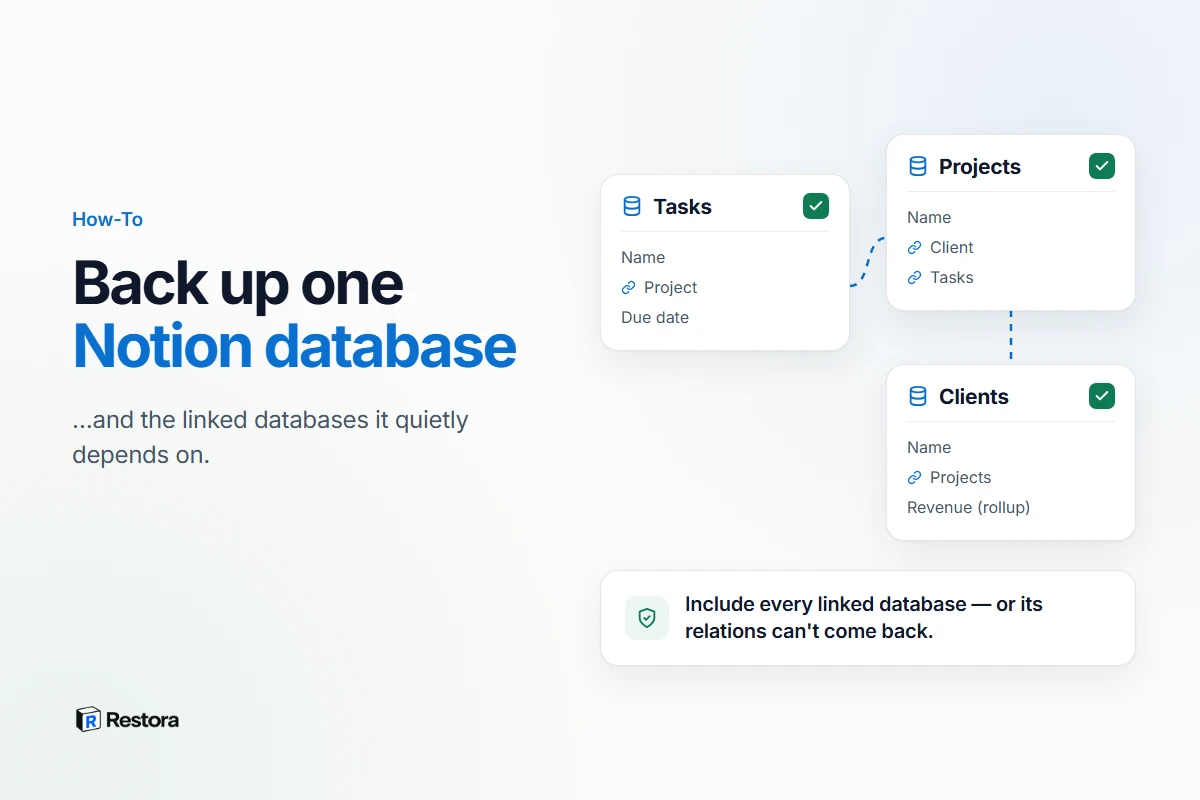
Most Notion backup advice is about whole workspaces. But the thing people are really afraid to lose is usually one database: the client list, the content calendar, the inventory, the project tracker a team opens every morning. Backing up one database is easy. Backing it up so it can be restored takes one extra decision that most guides skip — what to do about the databases it's related to.
The short answer
- A quick, readable archive: export the database as Markdown & CSV from its
•••menu. - A safety copy before a risky edit: duplicate it inside Notion, knowing its relations won't behave the same on the copy.
- A copy you can restore with relations intact: a structured backup that includes the database and every database it links to.
Option 1: Export the database
- Open the database as a full page, click
•••at the top right, and choose Export. - Pick Markdown & CSV. Turn on Include subpages if you want each row's page content as its own Markdown file.
- Choose the view to export from: Notion lets you pick the current view or the default view.
You get a CSV of the rows plus Markdown files — a good readable archive, and a weak restore source. Notion's help center says a new CSV import can't create relations, rollups or formulas, so re-importing gives you a new, flat table. Your views aren't in the file either. There's more in what Notion's export leaves behind.
Option 2: Duplicate it inside Notion
Duplicating the database from its ••• menu is the fastest checkpoint before a bulk edit, an import or a property change. Two catches:
- Relations change on the copy. In Notion's own example, duplicating a Customers database that's related to an Items database turns the relation from two-way into one-way, so the copy doesn't show up on the Items side.
- It lives in the same workspace. A copy sitting next to the original doesn't help if the workspace is deleted, you lose access, or a cleanup takes out both.
Treat a duplicate as a short-term checkpoint, not a backup.
Option 3: A structured backup of the database
A structured backup reads the database through Notion's API and saves its properties, rows, page content, views and files — with relations, rollups and formulas kept as definitions rather than frozen values — to storage outside Notion. With Restora:
- In the web app, select the database, and the databases it's related to, then back up. Backing up is free.
- With the free CLI, back up only the databases you name:
restora backup --databases <id>,<id>. Scheduled runs remember that selection. You can copy a database's ID out of its link with the free Notion URL to ID tool. - On Pro, save a recovery point for a single database just before a risky change, then compare it with the live database afterwards to spot structural changes such as removed or retyped properties.
When you need the database back, a restore recreates it inside Notion, reconnects its relations, recomputes rollups and rebuilds its views. Restoring is the paid step — on Pro, or with a one-time pass.
The part everyone misses: the databases it links to
A relation is a pointer from one database to another. Back up Tasks without Projects, and the backup has nothing to point Tasks' Project column at. On restore, Restora skips that relation and says why — it points to a database that wasn't included in the backup — and any rollup built on it can't be computed either. Nothing breaks silently, but that column doesn't come back.
So before you back up "just one database", open its properties and note every relation. Include each related database in the same backup, and follow the chain one step further if those databases relate to others you care about. For a CRM built in Notion, that usually means Companies, Contacts, Deals and Meetings together.
| Export to CSV | Duplicate in Notion | Structured backup | |
|---|---|---|---|
| Lives outside the workspace | Yes, once downloaded | No | Yes — your Drive, S3 or disk |
| Relations | Can't be recreated from the CSV | One-way on the copy | Kept, and restorable when linked databases are included |
| Views | One view's rows, no view settings | Stay with the copy | Saved and rebuilt on restore |
| Runs on a schedule | No | No | Yes |
| Becomes a working database again | No — a flat re-import | It's already a copy | Yes, through a restore |
What Notion's own tools cover for one database
- Version history can roll a database back: Notion says its pages and their properties are restored, but not the content inside those pages. History lasts 7 days on Free, 30 on Plus and 90 on Business, and is unlimited on Enterprise.
- Deleted properties can be brought back from the database's property settings, where Notion lists deleted properties with a restore option.
- Deleted rows go to Trash one by one, and stay there for 30 days by default.
- Property type changes are the gap: some conversions discard cell data outright. See which Notion property type changes lose data.
A five-minute routine for a database you can't lose
- Map its relations and decide which linked databases belong in the same backup.
- Schedule a backup of that set to storage you own — daily, if people edit it daily.
- Checkpoint before big changes: a fresh backup or recovery point before bulk edits, CSV imports, property changes, or letting an AI agent loose on it.
- Test a restore once into a scratch page, so the first restore you ever run isn't during an emergency.