
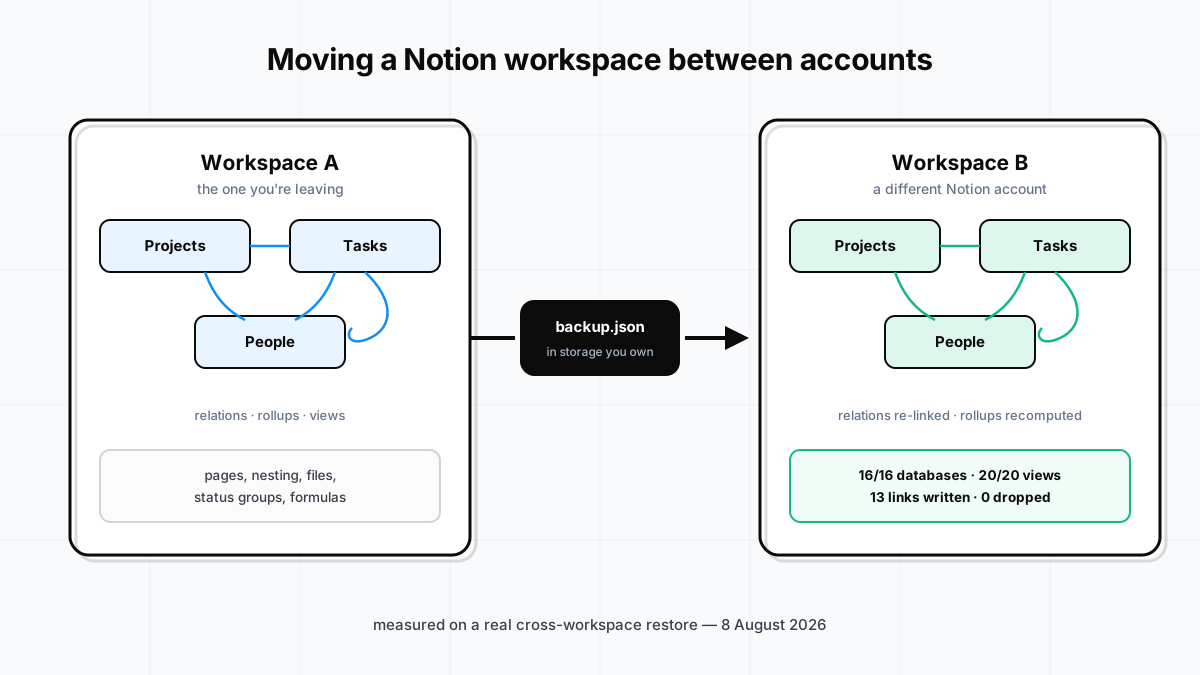
Ask around any Notion community and you'll find the same story on repeat: someone split their personal life from their work life, or left a company, or bought a business that ran on Notion — and then spent days rebuilding a workspace by hand in the new account. Recreating every database. Retyping every property. Clicking every relation back into place, row by row, from memory.
They did it by hand because Notion gives them no other way. There is no "move workspace" button. There is no "transfer to another account" for anything bigger than ownership changes inside a workspace. And the official escape hatch — export — hands you Markdown and CSV files that have been stripped of exactly the things that made your workspace a system instead of a pile of documents. We've written before about what Notion's export silently leaves behind; the short version is that relations flatten to text, rollups freeze into dead values, formulas vanish, and views don't exist at all.
So the honest framing of the problem is this: you cannot move a Notion workspace. You can only rebuild one. The question is whether the rebuild happens by hand over days, or through Notion's API in one run — with the wiring intact.
What a rebuild has to get right
The rows were never the hard part. If rows were the problem, CSV would be fine. What makes a workspace worth moving is the structure sitting on top of the rows:
- Relations — Tasks pointing at Projects, Projects at Clients, including self-referencing ones like sub-tasks pointing at parent tasks, and two-way pairs where each side mirrors the other.
- Rollups and formulas — numbers computed across those relations, which are only alive if the relations underneath them are.
- Views — the boards, calendars and filtered tables that make each page show the right slice of everything else.
- Hierarchy — which page lives inside which, three levels deep.
Any of those can be rebuilt by hand. All of them together, across a real workspace, is the multi-day job people keep describing. And the failure mode of a hand-rebuild is silent: a missed relation link doesn't error, it just quietly isn't there until the day a rollup looks wrong and nobody knows why.
What a real cross-account move measured
On 8 August 2026 we ran this end to end: a backup taken in one Notion workspace, restored into a second workspace under a different connection that provably could not see the first — the destination's own credentials get a 404 on the source database, which is how you know the rebuild used nothing but the backup file.
The source was a deliberately nasty test workspace: linked Projects, Tasks and People databases carrying a self-referencing relation, three two-way relation pairs, rollups computed over those relations, formulas, status columns with groups, unique-ID columns, nested pages, and a file attachment.
| What crossed | Result |
|---|---|
| Databases rebuilt | 16 of 16 |
| Views recreated (table, board, list, calendar, timeline, gallery) | 20 of 20 |
| Relation links written | 13 — 0 dropped, including the self-relation and all two-way pairs |
| Rollups | 2, recomputed by Notion against the restored links |
| Standalone pages, nesting preserved | 23 |
| Blocks skipped | 0 |
| Exceptions reported | 3 — all unique-ID prefixes, each one named |
Those are counts from one run on one workspace — not a benchmark, not an average, and not a promise about yours. Your workspace produces its own numbers, and its own restore report naming anything that didn't come across. We don't publish percentages, because a percentage hides which item you lost.
How to do it
- Back up the source workspace. Connect Notion at app.restora.cc and run a backup. It captures databases, rows, pages, blocks, views, relations and file bytes, into storage you own — your Google Drive, an S3 bucket, or a local file. Backing up is free, and it never modifies the workspace it reads.
- Connect the destination account. Sign in to the workspace you're moving into and share one page with Restora. That page becomes the parent for everything restored, so the copy lands exactly where you chose.
- Restore the backup into it. Restora recreates the databases, restates the schemas, writes the rows, then re-links the relations in a second pass — after every row exists — so links reconnect to the restored copies instead of pointing back at the source. Views are recreated with their filters and sorts, then the page tree is rebuilt. At the end you get a report that names every exception individually.
- Verify before you burn the boats. Open a project row: does its Tasks relation list the linked tasks, and do the rollups show numbers instead of blanks? The restore never touches the source, so take your time — the original is exactly as you left it until you decide to clean it up.
What doesn't cross — the whole list
A restore is a faithful rebuild, not a byte-for-byte clone, because Notion's API genuinely cannot write some things. Any tool that gives you a shorter list than this is leaving something out:
- Page IDs. Everything is newly created, so old links, bookmarks and automations pointing at the originals break. Links between pages inside the backup are remapped to the restored copies; mentions of pages you didn't include still point at the source.
- Timestamps, authorship and edit history. Notion assigns created/edited times itself, and no API exists for version history. The data comes back; its paper trail does not.
- Some comments. Page-level comments come back as new comments, with the original author named. Comments anchored to a block or a text selection aren't captured, and resolved threads can't be re-anchored.
- People-property values that can't be matched. A different account usually has different members. A value is restored when that person still resolves or an exact email match exists in the destination; the rest are left empty and named in the report.
- Sharing and permissions. Not exposed by the API at all. The restored copy inherits the sharing of the page it's restored under.
- Unique-ID prefixes.
TSK-42comes back as42, and numbering restarts at 1. The column survives; the prefix and the counter don't. - Custom workspace emoji. They belong to the source workspace's registry; a different workspace matches them by name where it has an emoji with that same name, falling back to the emoji's image, or, inline, to
:name:text — ambiguous name matches are never guessed. - Page-, feed- and dashboard-layout views. Notion's API can't recreate these yet — each is named in the report so you can re-add it by hand. Table, board, list, calendar, timeline, gallery, form, chart and map views all restore — maps with their locations.
- Files over the destination's plan limit. A free Notion workspace caps uploads at 5MB — Notion's limit, not ours. Bigger files stay safe in your backup, named as skipped, until you restore into a paid workspace.
Who actually does this
Splitting personal from work. The most common one. A workspace that started as notes grew a business inside it, and now clients are one wrong share away from your journal. Move the work half into its own workspace; leave the rest where it is.
Selling or handing over a business. The buyer needs the operating system — the CRM, the SOPs, the content calendar — not your personal account. Rebuild it in theirs and keep everything else out of the deal.
Agencies cloning a system per client. One backup of the master setup, restored into each client's workspace, beats rebuilding it by hand every engagement.
Leaving a company. Take the pages that are yours to take into an account you control, before access disappears. If this is you, the broader checklist in what comes with you when you leave Notion is worth ten minutes.
The part nobody plans for
Every path above assumes one thing exists: a backup taken while you still had access. The single most common way this goes wrong isn't a failed restore — it's the person who lost workspace access on a Friday and had never backed anything up. (If that's where you are, start with what you can still recover from a deleted or lost workspace.) At that point there is nothing to rebuild from, and no tool can invent what was never captured.
So whatever you're planning — the split, the handover, the exit — the first step costs nothing and commits you to nothing: take the backup now, while everything still works. The full mechanics, with the measured run and the compatibility table, live on the workspace migration page.