
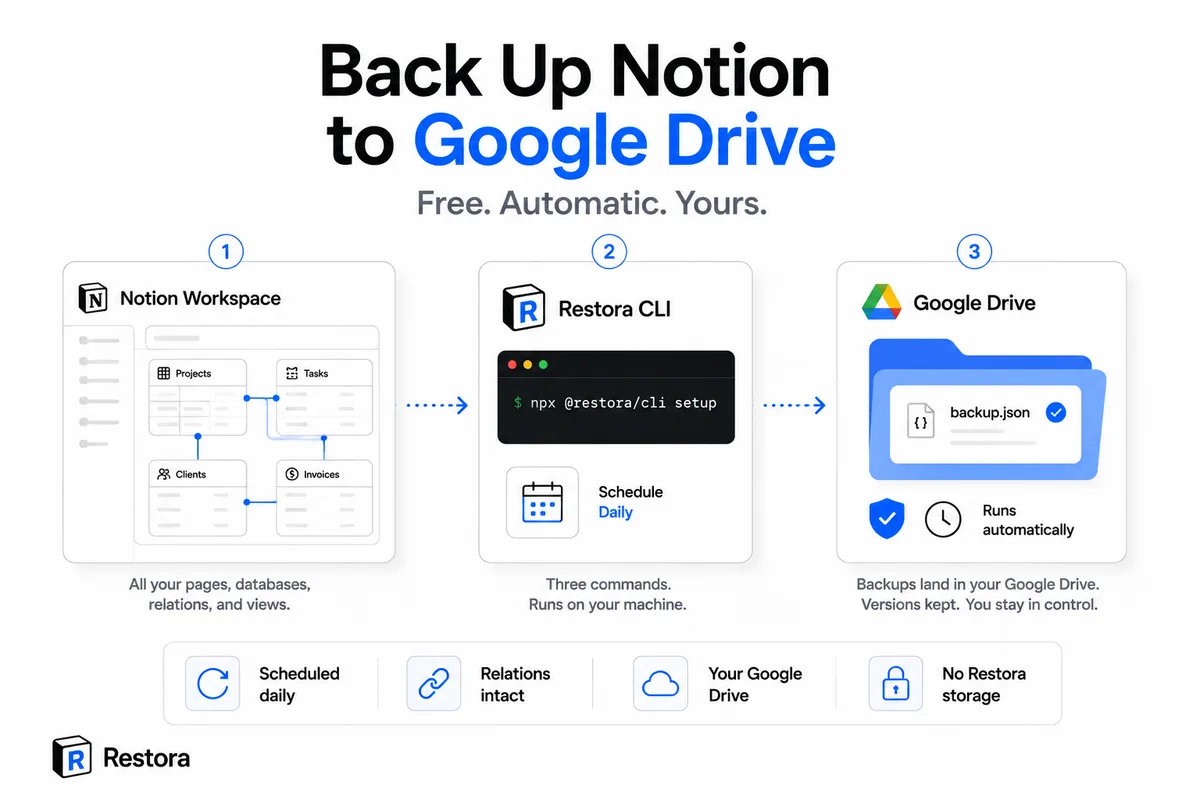
Google Drive is a good home for a Notion backup for the boring, correct reasons: you already have it, it's off Notion's infrastructure, and Google keeps its own versions on top of yours. The trick is getting a copy in there that's actually worth restoring — not a lossy export zip, and not something you have to remember to do.
Here's the free, automatic way, and where the paid, hands-off option fits. (Keeping backups in object storage instead? The same setup works with Amazon S3, Cloudflare R2 or Backblaze B2.)
What you want landing in Drive (and what you don't)
Dragging a Notion CSV export into Drive feels like a backup, but it isn't much of one. That export already dropped your relations, rollups, formulas, and views on the way out — see what Notion's export leaves behind — so all Drive is holding is flat text you can't rebuild from.
What you actually want in Drive is a structured backup: databases saved as definitions (relations, rollups, and formulas as logic, not frozen numbers), views, page hierarchy, and row attachments up to 20MB (150MB on Restora Pro) each. That's a copy you can put back inside Notion, not just read. Restora's backup is a single structured file per run, and it goes straight from your machine to your Drive — the backup is never stored on Restora's servers.
Step 1 — Install and connect (free CLI)
The open-source @restora/cli does the whole thing locally. One command sets it up and walks you through connecting Notion and authorizing your own Google Drive:
npx @restora/cli setup
You'll pick which pages and databases Notion shares with the tool, and sign in to the Google account whose Drive should hold the backups. The Google authorization is between you and Google — the backup uploads with your permission, and Restora keeps no copy.
Step 2 — Run your first backup
Pull a full copy into Drive:
restora backup
It reads your workspace read-only and writes one structured, timestamped file into a Restora Backups folder in your Drive. Big workspace? It streams to disk and up to Drive, so size isn't a wall. When you're done, you have a real, restorable copy sitting in storage you own.
Step 3 — Put it on a schedule
A backup you run by hand is one you'll stop running. Schedule it so it happens on its own:
restora schedule --daily 09:00
That registers a local job that backs up to your Drive every morning. The only catch with the free CLI schedule is that it's a job on your machine — the computer has to be awake at run time.
Want it fully hands-off? The Pro option
If you don't want to keep a machine awake on a schedule, the Restora Pro web app runs the backups for you, in the cloud, to your own Google Drive — same structured copy, same store-nothing boundary, no local job to babysit. Pro also adds near-real-time deletion alerts, so if a database gets wiped you hear about it in minutes. It's $6.99/month; the CLI stays free forever. Both write to your Drive and keep nothing on Restora's side.
The honest limits
Two things worth knowing before you rely on this. First, a restore creates new pages — rebuilt databases get new Notion IDs, so edit history resets to the moment of the restore and page comments come back as new comments with the original author named; your content and structure come back, the metadata trail starts fresh. Second, a backup only holds what it captured, so anything created after the last run isn't in that copy. That's exactly why the schedule matters: the gap between runs is the only window you can't recover. When you do need to put a database back, the full sequence is in restoring a database with relations intact.