
You exported your workspace to Markdown once. The zip is still in your Downloads folder, six months old, and you feel covered. You are not. That file is a photograph of a moving thing, taken on a day you've already forgotten, missing most of what made your databases work.
A backup is not a file you made once. It's a current copy of your data, on storage you control, that you can actually put back. Most "Notion backups" fail at least one of those three tests. Here's how to build one that passes all three.
Why "I exported once" isn't a backup
Two things break the one-time export as a safety net.
The first is staleness. A backup from March does nothing for a page you rewrote in July. Data loss doesn't schedule itself around your last export: a bad automation, an accidental delete, a property-type change that wipes a column the instant you confirm it. If your only copy predates the damage, it also predates the version you actually want back.
The second is what the export leaves out. Notion's built-in export — Markdown, CSV, HTML, PDF — saves page text and flat table rows. It drops the structure. Relations collapse to plain title text or raw page IDs. Rollups and formulas save only their frozen computed value, not the logic behind them. Views, filters, and sorts are absent entirely. Comments, edit history, and permissions are out of scope. We go deep on this in what Notion's export silently leaves behind, but the short version is that re-importing a CSV builds a brand-new table and reconnects nothing.
This isn't a knock on Notion. Export is a fine way to move text out or hand someone a read-only copy. It was never designed to reconstruct a relational workspace, and it doesn't pretend to be.
What a real backup has to capture
If the goal is "put my workspace back the way it was," the copy has to hold everything the export throws away:
- Databases with their brains intact — relations, rollups, and formulas as definitions, not just the numbers they happened to show on backup day.
- Views, filters, and sorts — the board, the calendar, the "my open tasks" filter your team actually opens every morning.
- Page hierarchy — the nesting and parent-child structure, so a restored page lands where it belongs instead of in a flat pile.
- Row attachments — the files pinned to database entries, not just dead links to them.
And one non-negotiable: it has to live on storage you own. A backup you can't reach without asking a vendor is a dependency, not insurance.
Where to put it: storage you actually control
The safest place for a backup is somewhere that outlives both Notion and your backup tool. Three good options, in rough order of how many people they suit:
- Your own Google Drive — easy, already in your life, and versioned by Google on top of your own copies. (Step-by-step setup.)
- An S3-compatible bucket — for teams that want a real object store with retention rules and access control. (Set it up with S3, R2 or Backblaze B2.)
- A local folder — the purist option. The data never touches anyone else's server.
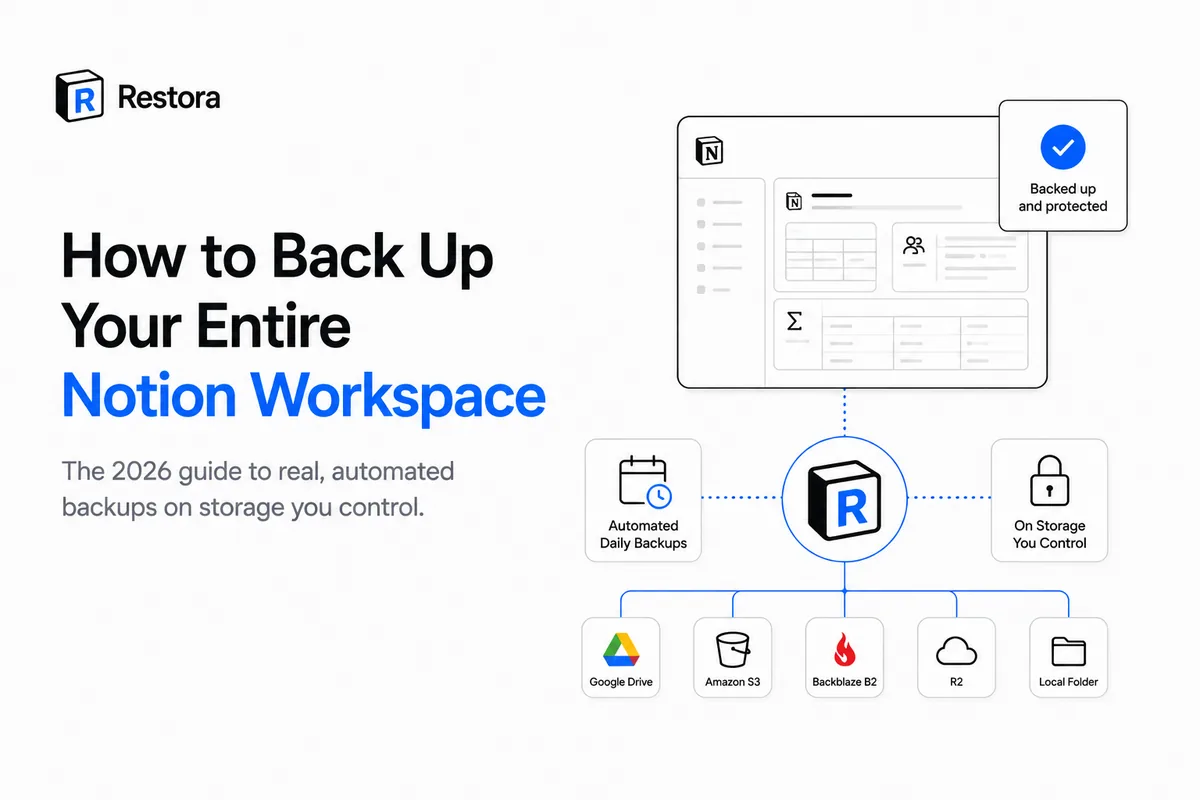
This is the model Restora runs on, and it's worth being blunt about the boundary. Your backups go to your Drive, your bucket, or your disk. No copy is stored on Restora's servers. Store-nothing isn't a toggle you flip — it's the architecture. If the company vanished tomorrow, your backups would sit exactly where you put them.
Automate it, or you won't do it
A manual backup is a backup you'll skip. The entire point is to take yourself out of the loop, because the loop is where the gaps come from.
The free, local @restora/cli runs a full backup from your terminal:
npx @restora/cli backup
Then put it on a schedule so it runs whether or not you remember to:
restora schedule --daily 09:00
That's a local job writing to storage you chose, on your machine. If you'd rather not keep a machine running on a schedule yourself, Pro automated backups handle the cadence for you, and Pro adds near-real-time deletion alerts, so you hear about a wiped database in minutes instead of at your next login.
Manual export vs a real backup
| What matters | Manual Notion export | Restora backup |
|---|---|---|
| Relations, rollups, formulas | Flattened to text or frozen values | Captured as definitions |
| Views, filters, sorts | Not included | Captured |
| Page hierarchy | Partial; flattens on re-import | Preserved |
| Put back into Notion | Manual rebuild, reconnects nothing | Rebuilt inside Notion |
| Automated | No — you remember or you don't | Scheduled (CLI) or hands-off (Pro) |
| Where it lives | Your Downloads, until you lose it | Your Drive, bucket, or disk |
When you do need to put a database back, the relations reconnect, rollups and formulas recompute, and your views return — row attachments up to 20MB (150MB on Restora Pro) per file come along too. The full sequence is in the restore-with-relations walkthrough.
The honest limits
A backup is not a time machine, and anyone who tells you it is one is selling. Three limits are worth knowing before you rely on this:
A restore creates new pages. When Restora rebuilds a database inside Notion, those pages get new Notion page IDs. That means edit history and the original authorship and creation timestamps reset to the moment of the restore, and page comments come back as new comments with the original author named. Your content and structure come back; the paper trail around them starts fresh.
A backup only holds what it captured. If a page was created after your last backup ran, it isn't in the copy. This is the entire argument for scheduling — the gap between backups is exactly the window you can't recover.
Nothing recovers what Notion has already purged. Trash keeps deleted pages for 30 days by default, and Notion says its support team can restore a snapshot from the past 30 days; beyond that, the page is gone. Version history only reverses edits on a page you still have, and keeps them for 7 days on Free, 30 on Plus, 90 on Business and without limit on Enterprise. Protection has to start before the loss, not after it. A backup you set up today can't reach back to a database that emptied out of trash last month.
None of this makes a backup less worth having. It makes the timing the whole game. The copy you take today is the one that saves you in three months, so the only version that matters is the one you set up before you need it.