
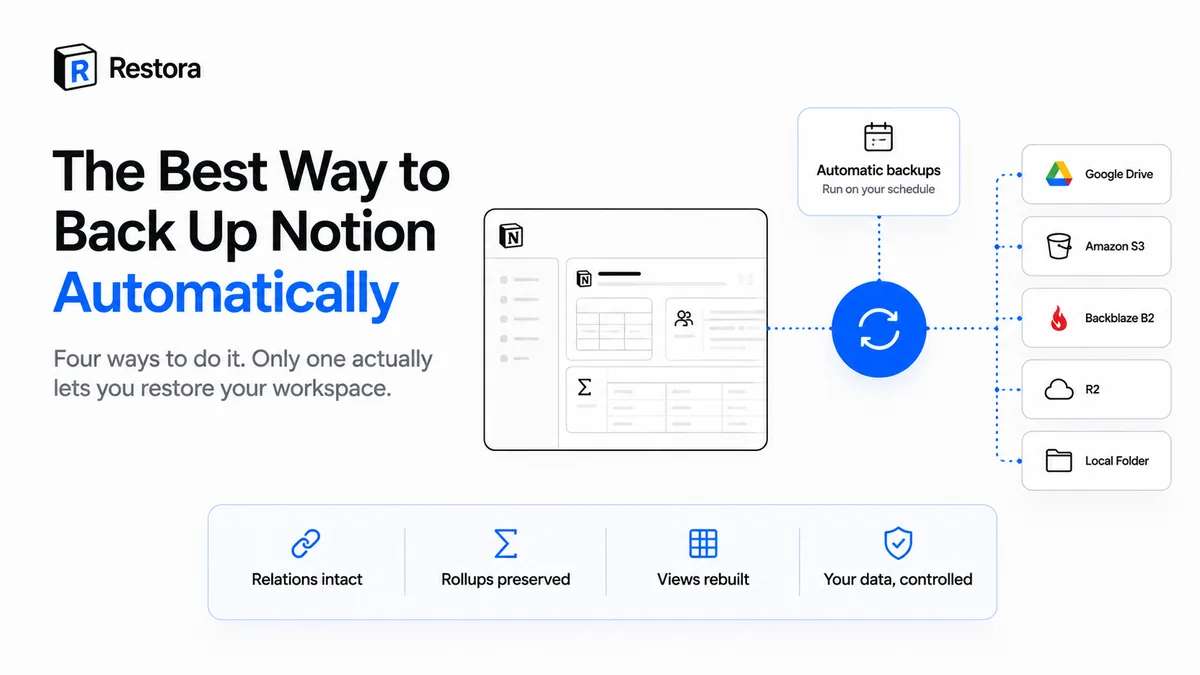
"Back up Notion automatically" sounds like a solved problem. Set a schedule, walk away, done. But most of the setups people land on quietly fail the only test that counts on the day something breaks: not did it save a file, but can you actually get your workspace back — databases wired up, rollups computing, views where they were.
A backup that produces a folder of JSON you can't restore isn't a backup. It's homework you did for nothing. Here are the four approaches, what each one really gives you, and how to set up the one that works.
The one test that separates a backup from a pile of files
Before comparing tools, fix the bar. A real automated Notion backup has to clear three things, and a lot of "solutions" clear one or two:
- It runs on its own. A backup you have to remember is a backup you'll skip. The gap between "I meant to" and "I did" is exactly where data loss lives.
- It lands on storage you own. Your Google Drive, your S3 bucket, your disk — somewhere that outlives both Notion and the backup tool.
- It can be restored back into Notion. Not "you have the data somewhere," but the database returns with its relations reconnected and its views rebuilt. This is the one everything falls down on.
Keep that third point in mind. It's the difference between a bad afternoon and a lost quarter.
Option 1: Notion's built-in export (on a reminder)
The obvious move: Settings → General → Export all workspace content, download a zip, repeat monthly. It's free and it's right there. It also fails all three tests. It doesn't run on its own — you do, until you forget. And it's lossy in a way that only shows up when you try to use it: relations flatten to plain text, rollups and formulas save their frozen value instead of their logic, and views, filters, and sorts don't come along at all. Re-importing that CSV builds a brand-new table and reconnects nothing. We break down exactly what disappears in what Notion's export silently leaves behind.
Export is genuinely useful for moving text out or handing someone a read-only copy. It was never built to reconstruct a relational workspace, and it doesn't claim to be.
Option 2: A DIY script on the Notion API
The engineer's answer: hit the Notion API from a script, dump every page and database to JSON, run it on a cron job or a GitHub Action. This clears the first two tests — it's automated and it writes wherever you point it. It's a real step up from manual export, and if all you want is an archive of text you can grep, it's fine.
Then you try to use it. The API dump is a faithful snapshot of the data, but restoring it into Notion is a second project entirely: recreating each database, re-establishing relations between rows that now have no IDs, rebuilding rollups and formulas and every view by hand. The API has no "put this database back" button — you'd be writing that yourself, and maintaining it every time Notion's API shifts (as it did with the 2026 data-source model). Most DIY backups are quietly write-only. Nobody discovers this until the day they need a restore. (We compared the popular open-source scripts in free Notion backup options.)
Option 3: A third-party tool that stores your data
Plenty of SaaS tools will back up Notion for you, on a schedule, with a restore button. Convenient — and the catch is in the fine print: many of them copy your entire workspace onto their servers. You've solved automation by creating a new problem. Your data now lives in a second place it can leak from, under a vendor whose pricing, security, and continued existence you don't control. For a tool whose whole job is protecting you from losing access to your data, "give us a full copy of your data" is a strange trade. Not every service works that way, and restore quality varies a lot between them — we compared seven on what they can restore.
Option 4: A store-nothing backup you can actually restore
The version that clears all three tests: scheduled, to storage you own, and restorable into Notion — without a vendor holding your workspace. That's the model Restora is built on, and the store-nothing part isn't a setting, it's the architecture. Your backups go to your Google Drive, your S3 bucket, or your disk. No copy is kept on Restora's servers, and the command-line tool runs locally. If Restora disappeared tomorrow, your backups would sit exactly where you put them.
The part that matters most is the restore. Because the backup captures databases as structure — relations, rollups, and formulas as definitions, plus views and page hierarchy — a restore rebuilds the real thing inside Notion: relations reconnect, rollups and formulas recompute, views come back, and row attachments up to 20MB (150MB on Restora Pro) per file come with them. The full walkthrough is in restoring a database with relations intact.
The four, side by side
| Manual export | DIY API script | Store-your-data SaaS | Store-nothing (Restora) | |
|---|---|---|---|---|
| Runs automatically | No | Yes | Yes | Yes |
| Lands on storage you own | Your Downloads | Yes | Their servers | Your Drive / S3 / disk |
| Restores into Notion | No — re-import loses relations | Not without building it | Usually | Yes — relations & views rebuilt |
| Who holds your data | You | You | The vendor | Only you |
| Upkeep | Your memory | You maintain the script | None | None |
Setting up the one that works
If you want the free, do-it-yourself path, the open-source @restora/cli runs a structured backup from your terminal to storage you choose:
npx @restora/cli backup
Then put it on a schedule so it happens whether or not you think about it:
restora schedule --daily 09:00
That's a local job, on your machine, writing to your own storage — free, and yours to keep. If you'd rather not run a machine on a schedule yourself, the Pro web app handles the cadence hands-off and adds near-real-time deletion alerts, so a wiped database reaches you in minutes instead of at your next login. Pro is $6.99/month; the CLI stays free.
The honest limits
No backup is a time machine, and the trustworthy move is to say so up front.
A restore creates new pages. When a database is rebuilt inside Notion, its pages get new Notion IDs — so edit history and the original authorship and creation timestamps reset to the moment of the restore, and page comments come back as new comments with the original author named. Your content and structure return; the paper trail around them starts fresh.
A backup only holds what it captured. A page created after the last run isn't in the copy. That's the whole argument for scheduling — the interval between backups is precisely the window you can't recover.
Nothing recovers what Notion has already purged. Trash empties after roughly 30 days, and Notion says its support team can restore a snapshot from the past 30 days; after that, it's gone for good. A backup set up today can't reach a database that emptied out of trash last month — see version history and trash limits. Protection has to start before the loss.
None of that makes automated backup less worth doing. It makes the timing the whole game: the copy you schedule today is the one that saves you three months from now.